Build interactive UI applications that render inside MCP hosts like Claude Desktop
For comprehensive API documentation, advanced patterns, and the full specification, visit the official MCP Apps documentation.
Text responses can only go so far. Sometimes users need to interact with data, not
just read about it. MCP Apps let servers return interactive HTML interfaces (data
visualizations, forms, dashboards) that render directly in the chat.
You could build a standalone web app and send users a link. However, MCP Apps
offer these key advantages that a separate page can’t match:Context preservation. The app lives inside the conversation. Users don’t
switch tabs, lose their place, or wonder which chat thread had that dashboard.
The UI is right there, alongside the discussion that led to it.Bidirectional data flow. Your app can call any tool on the MCP server, and
the host can push fresh results to your app. A standalone web app would need its
own API, authentication, and state management. MCP Apps get this via existing
MCP patterns.
Integration with the host’s capabilities. The app can delegate actions to the host, which can then invoke the capabilities and tools the user has already connected (subject to user consent). Instead of every app implementing and maintaining direct integrations (e.g., email providers), the app can request an outcome (like “schedule this meeting”), and the host routes it through the user’s existing connected capabilities.
Security guarantees. MCP Apps run in a sandboxed iframe controlled by the
host. They can’t access the parent page, steal cookies, or escape their
container. This means hosts can safely render third-party apps without trusting
the server author completely.If your use case doesn’t benefit from these properties, a regular web app might
be simpler. But if you want tight integration with the LLM-based conversation,
MCP Apps are a much better tool.
Traditional MCP tools return text, images, resources or structured data that the host displays as
part of the conversation. MCP Apps extend this pattern by allowing tools to
declare a reference to an interactive UI in their tool description that the host
renders in place.The core pattern combines two MCP primitives: a tool that declares a UI resource
in its description, plus a UI resource that renders data as an interactive HTML
interface.When a large language model (LLM) decides to call a tool that supports MCP Apps,
here’s what happens:
UI preloading: The tool description includes a _meta.ui.resourceUri
field pointing to a ui:// resource. The host can preload this resource before
the tool is even called, enabling features like streaming tool inputs to the
app.
Resource fetch: The host fetches the UI resource from the server. This
resource contains an HTML page, often bundled with its JavaScript and CSS for
simplicity. Apps can also load external scripts and resources from origins
specified in _meta.ui.csp.
Sandboxed rendering: Web hosts typically render the HTML inside a
sandboxed iframe
within the conversation. The sandbox restricts the app’s access to the parent
page, ensuring security. The resource’s _meta.ui object can include
permissions to request additional capabilities (e.g., microphone, camera)
and csp to control what external origins the app can load resources from.
Bidirectional communication: The app and host communicate through a
JSON-RPC protocol that forms its own dialect of MCP. Some requests and
notifications are shared with the core MCP protocol (e.g., tools/call), some
are similar (e.g., ui/initialize), and most are new with a ui/ method name
prefix. The app can request tool calls, send messages, update the model’s
context, and receive data from the host.
The app stays isolated from the host but can still call MCP tools through the
secure postMessage channel.
MCP Apps are a good fit when your use case involves:Exploring complex data. A user asks “show me sales by region.” A text
response might list numbers, but an MCP App can render an interactive map where
users click regions to drill down, hover for details, and toggle between
metrics, all without additional prompts.Configuring with many options. Setting up a deployment involves dozens of
interdependent choices. Rather than a back-and-forth conversation (“Which
region?” “What instance size?” “Enable autoscaling?”), an MCP App presents a
form where users see all options at once, with validation and defaults.Viewing rich media. When a user asks to review a PDF, see a 3D model, or
preview generated images, text descriptions fall short. An MCP App embeds the
actual viewer (pan, zoom, rotate) directly in the conversation.Real-time monitoring. A dashboard showing live metrics, logs, or system
status needs continuous updates. An MCP App maintains a persistent connection,
updating the display as data changes without requiring the user to ask “what’s
the status now?”Multi-step workflows. Approving expense reports, reviewing code changes, or
triaging issues involves examining items one by one. An MCP App provides
navigation controls, action buttons, and state that persists across
interactions.
You’ll need Node.js 18 or higher. Familiarity
with MCP tools and
resources is recommended since MCP
Apps combine both primitives. Experience with the
MCP TypeScript SDK
will help you better understand the server-side patterns.The fastest way to create an MCP App is using an AI coding agent with the MCP
Apps skill. If you prefer to set up a project manually, skip to
Manual setup.
AI coding agents with Skills support can scaffold a complete MCP App project for
you. Skills are folders of instructions and resources that your agent loads when
relevant. They teach the AI how to perform specialized tasks like creating MCP
Apps.The create-mcp-app skill includes architecture guidance, best practices, and
working examples that the agent uses to generate your project.
1
Install the skill
If you are using Claude Code, you can install the skill directly with:
To verify the skill is installed, ask your agent “What skills do you have access to?” — you should see create-mcp-app as one of the available skills.
2
Create your app
Ask your AI coding agent to build it:
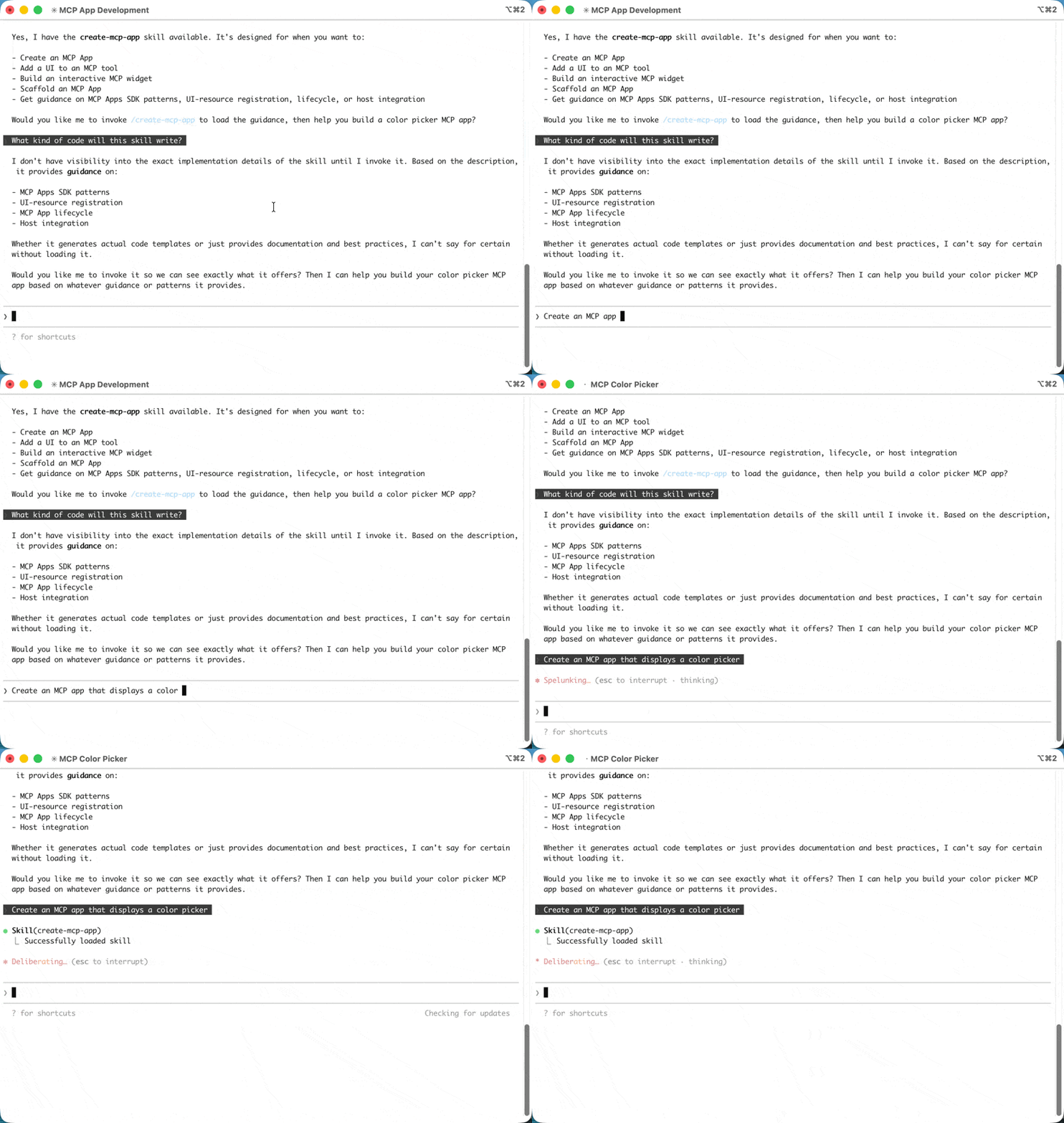
Create an MCP App that displays a color picker
The agent will recognize the create-mcp-app skill is relevant, load its instructions, then scaffold a complete project with server, UI, and configuration files.
Creating a new MCP App with Claude Code
3
Run your app
npm install && npm run build && npm run serve
npm install; npm run build; npm run serve
You might need to make sure that you are first in the app folder before running the commands above.
4
Test your app
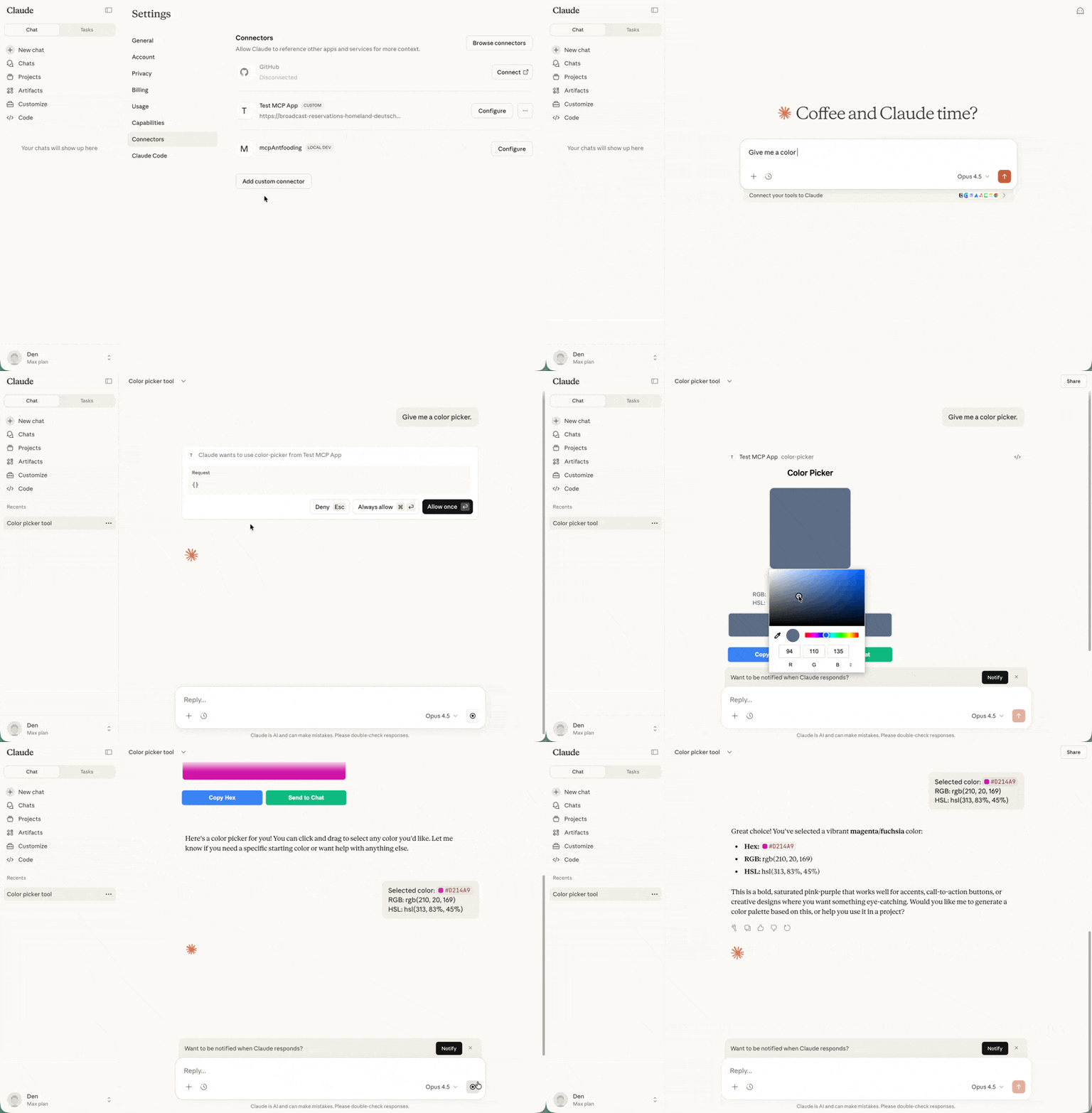
Follow the instructions in Testing your app below. For the color picker example, start a new chat and ask Claude to provide you a color picker.
If you’re not using an AI coding agent, or prefer to understand the setup
process, follow these steps.
1
Create the project structure
A typical MCP App project separates the server code from the UI code:
my-mcp-app
package.json
tsconfig.json
vite.config.ts
server.ts
mcp-app.html
src
mcp-app.ts
The server registers the tool and serves the UI resource. The UI files get bundled into a single HTML file that the server returns when the host requests the resource.
2
Install dependencies
npm install @modelcontextprotocol/ext-apps @modelcontextprotocol/sdknpm install -D typescript vite vite-plugin-singlefile express cors @types/express @types/cors tsx
The ext-apps package provides helpers for both the server side (registering tools and resources) and the client side (the App class for UI-to-host communication). Vite with the vite-plugin-singlefile plugin bundles your UI into a single HTML file that can be served as a resource.
3
Configure the project
package.json
tsconfig.json
vite.config.ts
The "type": "module" setting enables ES module syntax. The build script uses the INPUT environment variable to tell Vite which HTML file to bundle. The serve script runs your server using tsx for TypeScript execution.
The TypeScript configuration targets modern JavaScript (ES2022) and uses ESNext modules with bundler resolution, which works well with Vite. The include array covers both the server code in the root and UI code in src/.
Let’s build a simple app that displays the current server time. This example
demonstrates the full pattern: registering a tool with UI metadata, serving the
bundled HTML as a resource, and building a UI that communicates with the server.
The server needs to do two things: register a tool that includes the
_meta.ui.resourceUri field, and register a resource handler that serves the
bundled HTML. Here’s the complete server file:
// server.tsconsole.log("Starting MCP App server...");import { McpServer } from "@modelcontextprotocol/sdk/server/mcp.js";import { StreamableHTTPServerTransport } from "@modelcontextprotocol/sdk/server/streamableHttp.js";import { registerAppTool, registerAppResource, RESOURCE_MIME_TYPE,} from "@modelcontextprotocol/ext-apps/server";import cors from "cors";import express from "express";import fs from "node:fs/promises";import path from "node:path";const server = new McpServer({ name: "My MCP App Server", version: "1.0.0",});// The ui:// scheme tells hosts this is an MCP App resource.// The path structure is arbitrary; organize it however makes sense for your app.const resourceUri = "ui://get-time/mcp-app.html";// Register the tool that returns the current timeregisterAppTool( server, "get-time", { title: "Get Time", description: "Returns the current server time.", inputSchema: {}, _meta: { ui: { resourceUri } }, }, async () => { const time = new Date().toISOString(); return { content: [{ type: "text", text: time }], }; },);// Register the resource that serves the bundled HTMLregisterAppResource( server, resourceUri, resourceUri, { mimeType: RESOURCE_MIME_TYPE }, async () => { const html = await fs.readFile( path.join(import.meta.dirname, "dist", "mcp-app.html"), "utf-8", ); return { contents: [ { uri: resourceUri, mimeType: RESOURCE_MIME_TYPE, text: html }, ], }; },);// Expose the MCP server over HTTPconst expressApp = express();expressApp.use(cors());expressApp.use(express.json());expressApp.post("/mcp", async (req, res) => { const transport = new StreamableHTTPServerTransport({ sessionIdGenerator: undefined, enableJsonResponse: true, }); res.on("close", () => transport.close()); await server.connect(transport); await transport.handleRequest(req, res, req.body);});expressApp.listen(3001, (err) => { if (err) { console.error("Error starting server:", err); process.exit(1); } console.log("Server listening on http://localhost:3001/mcp");});
Let’s break down the key parts:
resourceUri: The ui:// scheme tells hosts this is an MCP App resource.
The path structure is arbitrary.
registerAppTool: Registers a tool with the _meta.ui.resourceUri field.
When the host calls this tool, the UI is fetched and rendered, and the tool result is passed to it upon arrival.
registerAppResource: Serves the bundled HTML when the host requests the UI resource.
Express server: Exposes the MCP server over HTTP on port 3001.
// src/mcp-app.tsimport { App } from "@modelcontextprotocol/ext-apps";const serverTimeEl = document.getElementById("server-time")!;const getTimeBtn = document.getElementById("get-time-btn")!;const app = new App({ name: "Get Time App", version: "1.0.0" });// Establish communication with the hostapp.connect();// Handle the initial tool result pushed by the hostapp.ontoolresult = (result) => { const time = result.content?.find((c) => c.type === "text")?.text; serverTimeEl.textContent = time ?? "[ERROR]";};// Proactively call tools when users interact with the UIgetTimeBtn.addEventListener("click", async () => { const result = await app.callServerTool({ name: "get-time", arguments: {}, }); const time = result.content?.find((c) => c.type === "text")?.text; serverTimeEl.textContent = time ?? "[ERROR]";});
The key parts:
app.connect(): Establishes communication with the host. Call this once
when your app initializes.
app.ontoolresult: A callback that fires when the host pushes a tool
result to your app (e.g., when the tool is first called and the UI renders).
app.callServerTool(): Lets your app proactively call tools on the server.
Keep in mind that each call involves a round-trip to the server, so design your
UI to handle latency gracefully.
The App class provides additional methods for logging, opening URLs, and
updating the model’s context with structured data from your app. See the full
API documentation.
To test your MCP App, build the UI and start your local server:
npm run build && npm run serve
npm run build; npm run serve
In the default configuration, your server will be available at
http://localhost:3001/mcp. However, to see your app render, you need an MCP
host that supports MCP Apps. You have several options.
Claude (web) and Claude Desktop
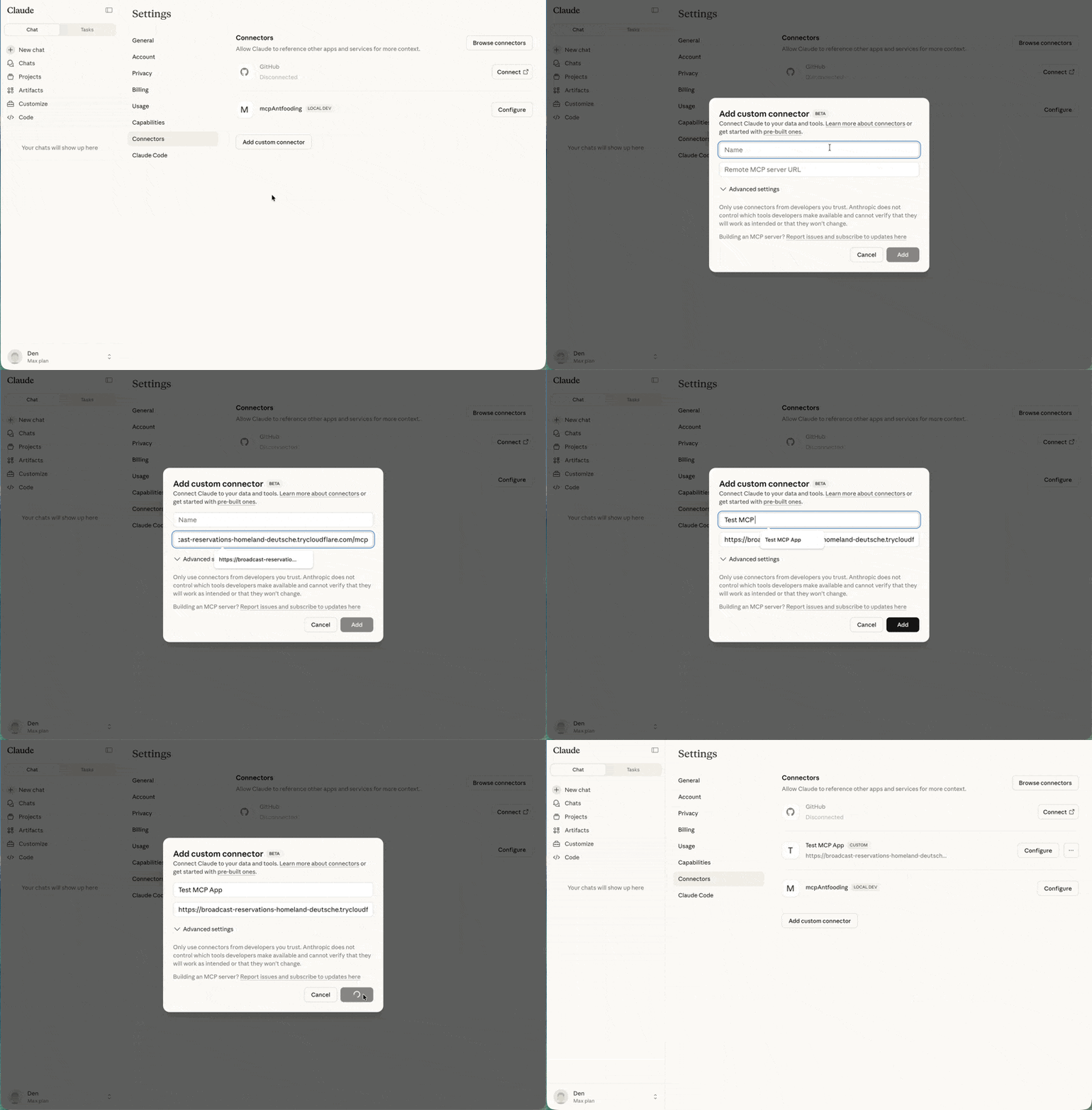
support MCP Apps. For local development, you’ll need to expose your server to
the internet. You can run an MCP server locally and use tools like cloudflared
to tunnel traffic through.In a separate terminal, run:
Copy the generated URL (e.g., https://random-name.trycloudflare.com) and add it
as a custom connector
in Claude - click on your profile, go to Settings, Connectors, and
finally Add custom connector.
Custom connectors are available on paid Claude plans (Pro, Max, or Team).
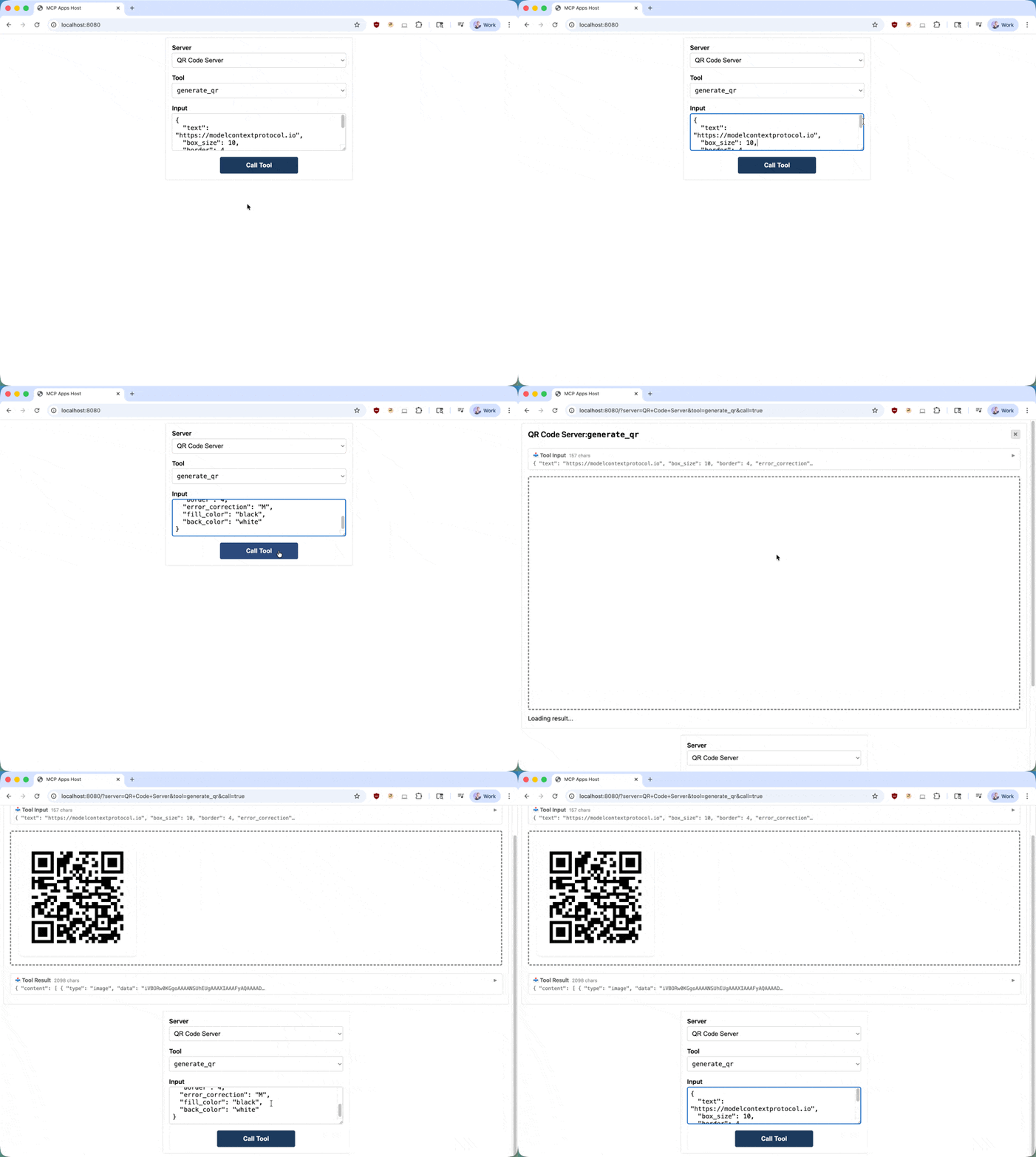
Running npm start from ext-apps/examples/basic-host/ will start the basic-host
test interface. To connect it to a specific server (e.g., one you’re developing),
pass the SERVERS environment variable inline:
Navigate to http://localhost:8080. You’ll see a simple interface where you can
select a tool and call it. When you call your tool, the host fetches the UI
resource and renders it in a sandboxed iframe. You can then interact with your
app and verify that tool calls work correctly.
MCP Apps run in a sandboxed
iframe, which
provides strong isolation from the host application. The sandbox prevents your
app from accessing the parent window’s
DOM, reading
the host’s cookies or local storage, navigating the parent page, or executing
scripts in the parent context.All communication between your app and the host goes through the
postMessage API,
which the App class shown above abstracts for you. The host controls which
capabilities your app can access. For example, a host might restrict which tools
an app can call or disable the sendOpenLink capability.The sandbox is designed to prevent apps from escaping to access the host or user data.
MCP Apps use their own dialect of MCP, built on JSON-RPC like the core protocol.
Some messages are shared with regular MCP (e.g., tools/call), while others are
specific to apps (e.g., ui/initialize). The transport is
postMessage
instead of stdio or HTTP. Since it’s all standard web primitives, you can use any
framework or none at all.The App class from @modelcontextprotocol/ext-apps is a convenience wrapper,
not a requirement. You can implement the
postMessage protocol
directly if you prefer to avoid dependencies or need tighter control.The examples directory
includes starter templates for React, Vue, Svelte, Preact, Solid, and vanilla
JavaScript. These demonstrate recommended patterns for each framework’s system,
but they’re examples rather than requirements. You can choose whatever works
best for your use case.
Use a framework: The @mcp-ui/client
package provides React components for rendering and interacting with MCP Apps
views in your host application. See the
MCP-UI documentation for usage details.
Build on AppBridge: The SDK includes an
App Bridge
module that handles rendering apps in sandboxed iframes, message passing, tool
call proxying, and security policy enforcement. The
basic-host example
shows how to integrate it.
MCP Apps is under active development. If you encounter issues or have ideas for
improvements, open an issue on the
GitHub repository.
For broader discussions about the extension’s direction, join the conversation
in GitHub Discussions.